PWA Manifest and Service Worker Installability: Will Browsers Offer "Install" on Your Site?
Last updated:
Installability is the property of a website that makes a browser offer to install it as an app — an icon on the home screen or in the app launcher, a window of its own, no browser chrome — and it is earned by two files: a Web App Manifest that describes the app, and a service worker that makes it work offline. A good website is not automatically an installable one. The browser applies a checklist before it ever shows an install prompt: the page must be served over HTTPS, it must link a manifest with a name, icons at 192 and 512 pixels, a start URL and a display mode, and it must register a service worker. Miss one item and there is no prompt, no matter how polished the site is. This article explains what “installable” means and why browsers gate the prompt, which manifest fields actually decide it, what the service worker is for, the five mistakes that break it, what passing a check cannot promise, and how to check your own site in five minutes with the PWA Manifest & Service Worker Checker.
What “installable” means — and why browsers gate the install prompt
An installable site is one the browser is willing to present as an app. When the criteria are met, Chrome and Edge can show an install prompt — a small offer in the address bar or a banner — and the user who accepts gets an icon on the home screen or in the app launcher, a window that opens without browser tabs or an address bar, and a splash screen while it loads. The site is still a website under the hood, but to the user it behaves like an installed app: it launches from the same place apps launch from, and it can keep working when the network drops.
Browsers gate the prompt because installing is a commitment. A home-screen icon takes space the user trusts, an installed app gets a persistent presence and can ask for permissions, and in the early days of the install prompt any site could ask — which produced misleading prompts, low-quality “apps” that were just a bookmark, and users who learned to dismiss the offer on sight. The gate is a quality and trust bar: the browser only offers the prompt for sites that look like real apps and have earned some engagement first. That is also why you cannot force the prompt. A site can meet every criterion and still not see it until the browser judges the user engaged enough — the prompt belongs to the browser, not to the site.
The manifest fields that actually decide it — and the ones that only polish it
The manifest is a JSON file — usually manifest.json, linked from the page with — and only a handful of its fields decide installability. The name (or short_name; one of the two is required) is what the home screen shows. The icons must include a 192-pixel and a 512-pixel entry, PNG, with the sizes declared — the 512 icon is the one the install UI actually uses, and a 192 alone is not enough. The start_url says where the app opens. And display must be standalone, fullscreen or minimal-ui — anything but “browser”, which tells the browser the app is just a website. If any of these is missing, the browser does not consider the site installable, full stop.
Everything else in the manifest polishes the installed app without deciding whether it can be installed. A maskable icon fills the icon mask Android applies, so the icon looks right instead of sitting on a white square. The theme_color colours the browser UI and the background_color colours the splash screen while the app loads. The description and screenshots appear in the install UI on some platforms; categories help app stores classify the app; shortcuts add long-press quick actions. None of these blocks the prompt, and all of them are worth having — a site with a bare-minimum manifest installs, but a site with a finished manifest looks like an app from the first second. The checker scores the deciders heavily and the polish lightly, which is the same weighting the browsers use. 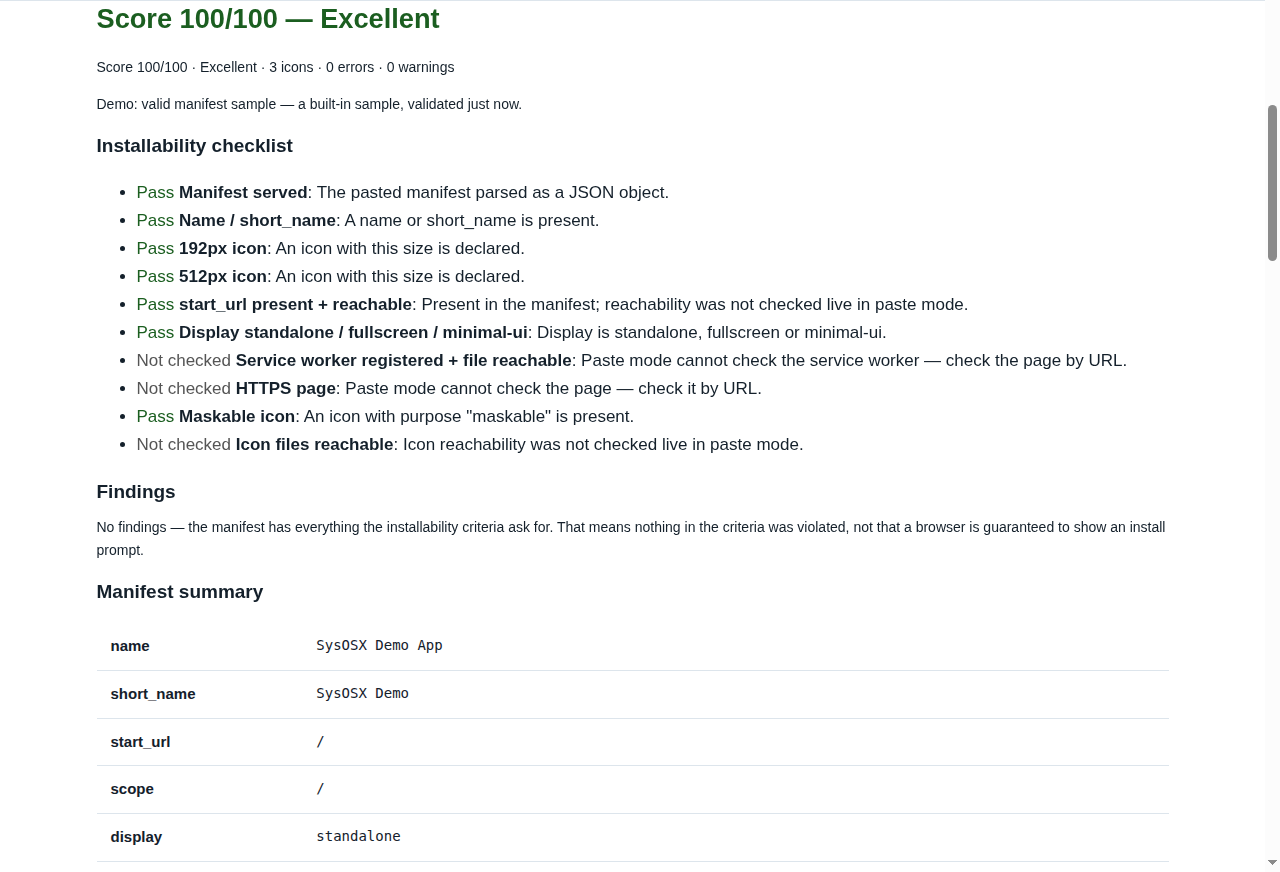
What the service worker is for — and why installability needs one
A service worker is a script the browser runs in the background, separate from any page. It is registered with navigator.serviceWorker.register(), it controls the pages under its scope, and its defining feature is the fetch handler: it intercepts network requests and decides what to answer — from the cache, from the network, or from a mix of both. That is what makes offline work possible: the worker can serve a cached start page when there is no connection, queue work to retry later with background sync, and deliver push notifications even when the site is closed.
Installability needs one because the manifest only describes the app; the service worker is the proof that it can behave like one. Chrome’s install criteria require a registered service worker with a fetch handler — without it, the “app” would be a bookmark that dies the moment the network does, and the browser will not offer to install it. Scope is the detail that catches people: a worker only controls pages under its own scope, so if the worker lives at /js/sw.js its scope is /js/ by default, and a start_url of / sits outside it. Put the worker at the site root with scope / and the start_url is inside it. The service worker must also be same-origin and served over HTTPS, like everything else in the installability checklist.
The five mistakes that break it
First, no manifest link. The manifest exists, but the page never links it — is missing, or points at a path that 404s — so the browser never sees it. Second, a missing 512-pixel icon: the manifest has a 192 icon and the author assumes that is enough, but the install UI needs the 512. Third, a start_url outside the service worker’s scope: the app opens on a page its own worker cannot control, so offline does not work where it matters most. Fourth, display set to “browser” — or left out entirely — which tells the browser the site is happy being a tab. Fifth, an HTTP page: installability requires HTTPS, with localhost the only exception, for local development.
Each one has a quick fix, and the order to check them is the order above. Add the link tag and confirm the manifest loads — a manifest with a JSON syntax error is the same as no manifest at all. Add a real 512-pixel PNG and declare its size honestly. Set the scope so it covers the start_url, or move the worker to the root. Set display to standalone. And serve the whole site over HTTPS — if you are unsure what your site actually serves, the Modern Protocol Checker shows the transport side. Two more things to verify while you are there: the manifest should be served as application/manifest+json, and the icons should be real PNGs at the sizes their sizes field claims — a file that says 512x512 but is really a different size will pass a reachability check and fail in the install UI.
What passing a check cannot promise
This needs saying plainly: passing a check does not guarantee an install prompt. The browser decides, and the criteria change — Chrome has revised its install requirements before, and what is required today may not be what is required next year. Safari plays by its own rules entirely: it shows no install prompt at all, users add a site to the home screen by hand, and its manifest support has gaps that Chrome and Edge do not have. A clean score means the manifest and the service worker meet the criteria as written in the MDN and web.dev documentation today. It does not mean a browser will offer the prompt tomorrow, and it does not mean the user will accept it if it does.
The same honesty applies to what the checker itself can see. It validates the manifest text and checks that the icons, the start URL and the service-worker file are reachable — but it does not run the worker, so it cannot confirm the worker actually installs, caches, or serves anything offline. A worker that registers and then does nothing looks identical, from the outside, to one that works. The icon checks confirm the files are reachable and report their content type and size; they do not decode the image pixels, so a file declared 512x512 that is really another size passes reachability and is flagged only if its declared sizes value is malformed. And in URL mode the page is fetched by the sysosx checker server, not your browser, so a page behind a login or bot-gating may return different markup to the checker than it shows you. A clean score means the files are right. The browser still makes the call.
How to check your own site in five minutes
Open the PWA Manifest & Service Worker Checker and start with the paste demos: a valid manifest sample that shows what a clean run looks like — score, installability checklist, findings, and the manifest summary — and then the broken demo, the same sample with three deliberate faults (no 512-pixel icon, no start_url, display “browser”), which shows how the findings explain each fault with a fix. That pair teaches the shape of a good report in under a minute. Then paste your own manifest, or check your own page by URL: the checker finds the page’s manifest link, fetches the manifest, checks every icon and the start URL for reachability, and scans for a service-worker registration. If the page has no manifest at all, that is the result — say so plainly and start there.
Read the score as a summary, not a verdict. It starts at 100: a missing name and short_name costs 15; a missing 192-pixel icon costs 15; a missing 512-pixel icon costs 15; a missing start_url costs 15; display set to “browser” or missing costs 10; no maskable icon costs 5; a missing theme_color costs 5; a missing background_color costs 5; malformed icon sizes or type cost 5 each, up to 10; a scope that is not a prefix of the start_url costs 5; a missing description costs 2; and missing screenshots cost 2. An unparseable manifest gets an error report and no score at all. Ninety or above is Excellent, 70–89 is Good, 50–69 Needs work, and below 50 is Poor. Fix errors first — the missing name, the missing icons, the missing start_url — then warnings, then re-run: the fastest path to a clean score is usually adding one missing field, not rewriting the manifest. And once the score is clean, open the site on a phone and try the install flow yourself — that is the check no automated tool can run for you.
Try it yourself: a minimal valid Web App Manifest
{
  "name": "Example App",
  "short_name": "Example",
  "start_url": "/",
  "scope": "/",
  "display": "standalone",
  "background_color": "#ffffff",
  "theme_color": "#0b5fff",
  "description": "An example installable web app.",
  "icons": [
    {
      "src": "/icons/icon-192.png",
      "sizes": "192x192",
      "type": "image/png"
    },
    {
      "src": "/icons/icon-512.png",
      "sizes": "512x512",
      "type": "image/png",
      "purpose": "maskable"
    }
  ]
}