访问 Azure 文件共享有时会导致错误,尤其是在使用从 Azure 门户复制的装载脚本时。一个常见问题是 “Access Denied” 错误,在将 Azure Files 配置为 Azure Virtual Desktop (AVD) 环境的一部分时可能会发生。本指南探讨该问题的根本原因并提供解决方法,比较了 Net Use command 方法与 Azure 门户脚本 方法。
关键用例
此故障排查场景通常出现在以下环境中:
- FSLogix Profile Containers 与 Azure Files 结合使用。
- Azure 存储帐户 已加入 本地 Active Directory (AD)。
- 组策略对象 (GPO) 限制凭据存储,导致身份验证失败。
问题概述
当尝试使用 Azure 门户提供的脚本装载 Azure 文件共享时,用户可能会遇到 “Access Denied” 错误。即使在以下情况下,此问题仍然存在:
- 使用新的 AVD 主机。
- 使用不同的用户帐户进行测试。
观察结果
- 日志中的错误
- 后端日志(通过 DGrep 和 Log Collector 收集)显示 Access Denied 错误。
- 该错误包括 “KerberosClientOtherError”,这表明正在使用 Kerberos 身份验证,而不是 存储帐户密钥 凭据。
- 有效方法与无效方法对比
- Net Use Command:使用存储帐户密钥成功装载 Azure 文件共享。
- Azure 门户脚本:失败,原因是使用了 Kerberos 身份验证,而不是提供的存储帐户密钥。
根本原因
该问题由以下因素造成:
- 凭据管理器行为
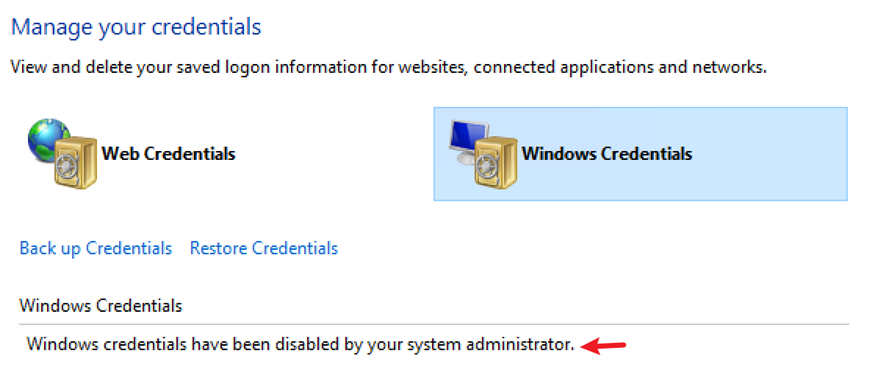
- Azure 门户脚本将存储帐户凭据保存到 Windows 凭据管理器。
- 如果凭据无法缓存(由于 GPO 限制或缓存失败),脚本将默认使用当前用户的凭据进行身份验证。
- 组策略限制
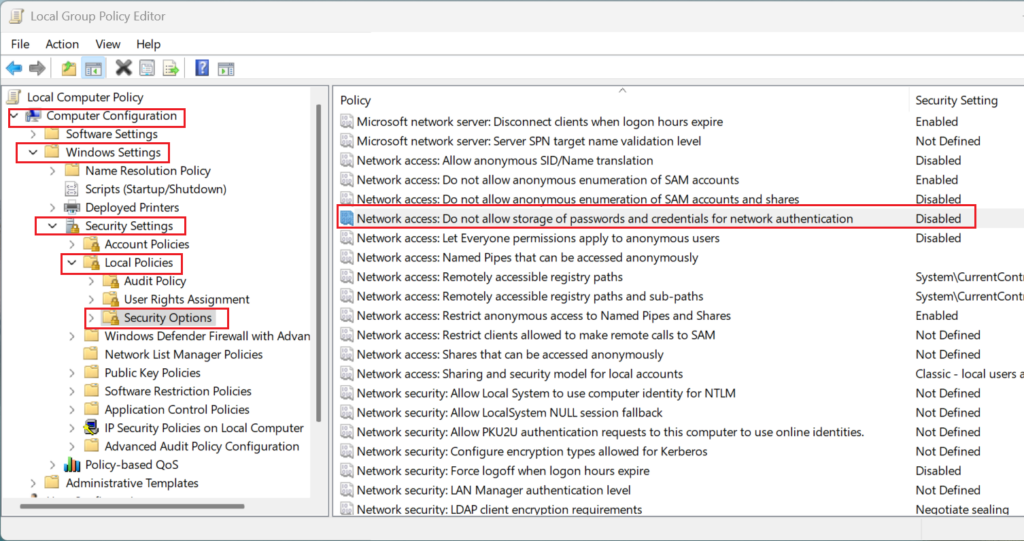
- GPO 设置 “Network access: Do not allow storage of passwords and credentials for network authentication” 会阻止凭据管理器存储凭据。
- 因此,系统会尝试 Kerberos 身份验证,但由于 NTFS 权限不足而失败。
故障排查步骤
步骤 1:验证错误
对两种方法执行网络跟踪分析:
- Net Use Command:使用存储帐户密钥成功建立 SMB 连接。
- Azure 门户脚本:尝试 Kerberos 身份验证,导致 Access Denied 错误。
步骤 2:使用 Net Use 命令测试
以下 Net Use command 会绕过凭据管理器,并直接提供存储帐户密钥进行身份验证:
net use <desired-drive-letter>: \\<storage-account-name>.file.core.windows.net\<share-name> <storage-account-key> /user:Azure\<storage-account-name>
为什么这样有效:
- 凭据在命令中明确提供。
- 不依赖凭据管理器或 Kerberos 身份验证。
步骤 3:分析组策略设置
运行以下命令以检查组策略配置:
gpresult /h c:\temp\computer.html
检查生成的 HTML 文件,查找 GPO 设置:
“Network access: Do not allow storage of passwords and credentials for network authentication”
如果启用了此设置,Azure 门户脚本就无法在凭据管理器中保存凭据,从而导致身份验证失败。
步骤 4:解决方法
禁用限制性 GPO
- 打开 组策略管理 在域控制器上。
- 找到该策略:
Computer Configuration\Windows Settings\Security Settings\Local Policies\Security Options
- Network access: Do not allow storage of passwords and credentials for network authentication。
- 将该策略设置为 Disabled。
禁用此策略后,Azure 门户脚本就可以在凭据管理器中存储凭据,从而实现成功的身份验证。
对比:Net Use 命令与 Azure 门户脚本
| 方法 | 身份验证机制 | 依赖项 | 结果 |
|---|---|---|---|
| Net Use Command | 存储帐户密钥 | 无凭据管理器 | 成功 |
| Azure 门户脚本 | Kerberos(如果缓存失败则回退) | 凭据管理器 | 如果 GPO 限制缓存,则失败 |
其他提示
- 在实验室环境中测试
通过启用 GPO 设置来模拟此问题:
Network access: Do not allow storage of passwords and credentials for network authentication。 - 文档参考
遵循官方指南: 使用 Azure Files 和 AD DS 或 Microsoft Entra 域服务设置 FSLogix 配置文件容器。 - 网络配置
确保端口 445 已为 SMB 流量开放。如果被阻止,请使用 Azure VPN 或 ExpressRoute 来隧道传输 SMB 流量。
结论
使用 Azure 门户脚本装载 Azure 文件共享时出现的 Access Denied 错误通常是由于阻止凭据缓存的限制性 GPO 设置造成的。使用 Net Use command 提供了一种可靠的解决方法,它绕过凭据管理器并直接提供存储帐户密钥。禁用限制性 GPO 可以解决 Azure 门户脚本方法的问题。