If you’re managing Azure Storage Accounts, understanding diagnostic logging is essential for maintaining performance, security, and operational efficiency. Whether you’re auditing operations, monitoring errors, or investigating firewall issues, Azure Storage diagnostic logging is your go-to tool. In this article, we’ll introduce all the public documentation and practical steps to troubleshoot Azure Storage-related issues using diagnostic logging.
Table of Contents
What is Azure Storage Diagnostic Logging?
Azure Storage diagnostic logging is a feature that allows you to capture detailed information about operations performed on your storage account. These logs can help you monitor transactions, troubleshoot issues, and gain insights into how your storage services are being used.
Why Use Diagnostic Logging?
With diagnostic logging, you can:
- Audit operations: Track who accessed or modified storage account data (e.g., “Who deleted my files?”).
- Monitor transaction metrics: Understand usage patterns and trends (e.g., “How many transactions occurred yesterday?”).
- Investigate errors: Identify and resolve issues like 404 errors or unauthorized access attempts.
- Troubleshoot firewall issues: Validate IP addresses and connection sources.
- Create alerts: Automate notifications for specific events (e.g., “Email me when new files are uploaded”).
How to Enable Azure Storage Diagnostic Logging
Setting up diagnostic logging is straightforward. Follow these steps:
- Navigate to the Storage Account Overview: Log into the Azure portal and select your storage account.
- Select “Diagnostics”: On the left-hand side menu, click on the “Diagnostics” option.
- Choose a Service to Log: Select the specific service you want to log operations for (e.g., Blob, File, Queue, or Table).
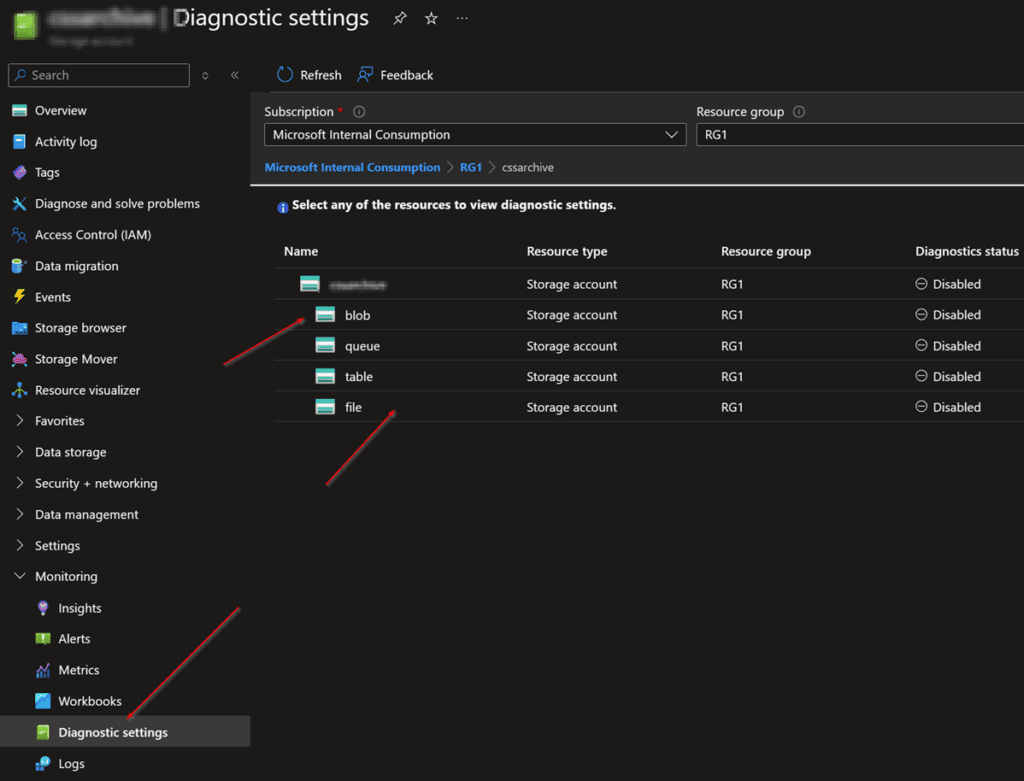
- Add a Diagnostic Setting:
- Click on “Add a diagnostic setting.”
- Name the setting (e.g., “StorageAuditLogs”).
- Select the types of operations you want to log (e.g., Read, Write, Delete).
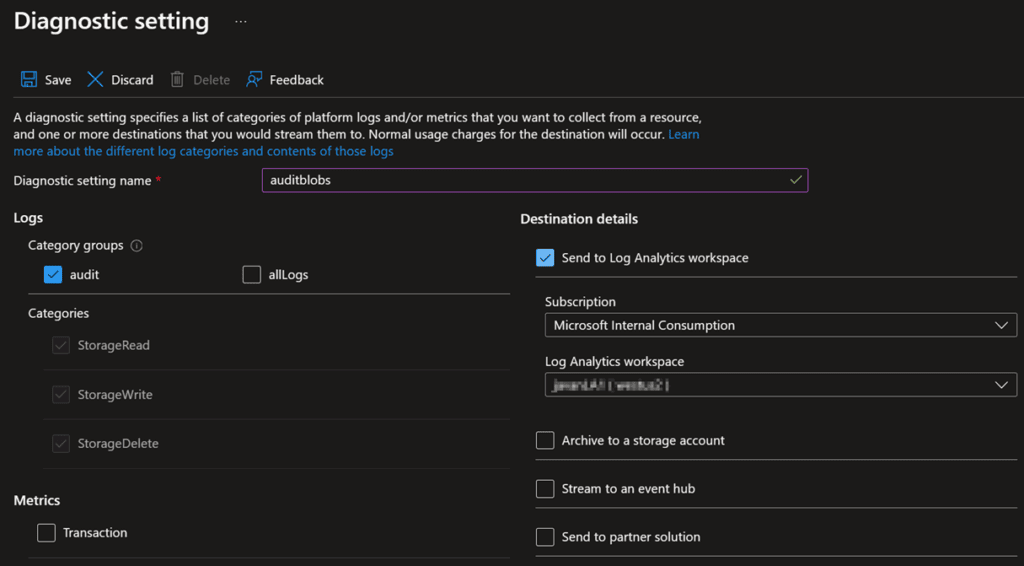
- Configure the Destination:
- Choose where you want the logs to be sent (e.g., Log Analytics Workspace, Storage Account, or Event Hub).
- If using Log Analytics, either select an existing workspace or create a new one. (Note: Log Analytics may incur additional costs.)
- Save the Settings: Click “Save” to enable diagnostic logging.
Auditing and Troubleshooting with Logs
Once diagnostic logging is enabled, you can analyze the logs to troubleshoot issues or gain insights. Here’s how:
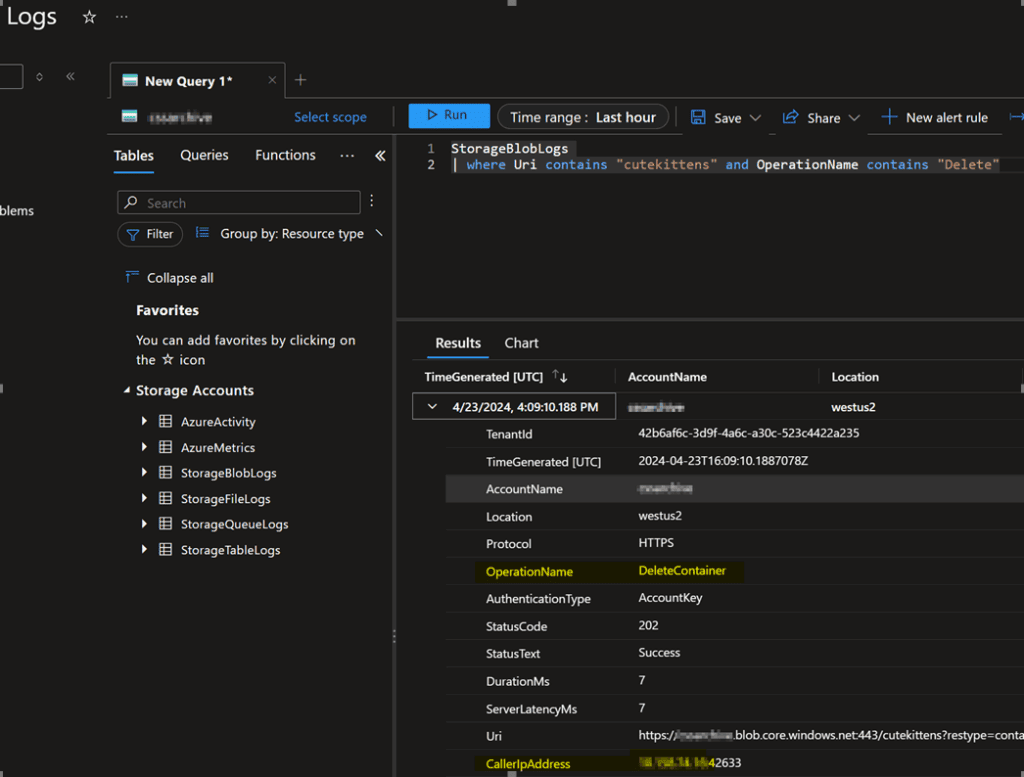
- Access Logs: Go to the “Logs” option in the storage account blade. This will open Log Analytics.
- View Diagnostic Tables: Depending on the services you’ve enabled, you’ll see tables like
StorageBlobLogs,StorageFileLogs, etc. - Run Kusto Queries:
- Use KQL (Kusto Query Language) to filter and analyze the logs.
- Example Query:
StorageBlobLogs
| where Uri contains "cutekittens" and OperationName contains "Delete"
Common Scenarios and Use Cases
Here are some practical examples of how diagnostic logging can help:
1. Audit Operations
- Use logs to track who accessed or modified your data.
- Example: “Who deleted my cute kittens’ videos?”
2. Monitor Errors
- Identify issues like 404 errors or failed requests.
- Example: “How many 404 errors occurred in the last hour?”
3. Troubleshoot Firewall Issues
- Validate whether a specific IP address is being blocked.
- Example: “Was the connection from this IP address denied?”
4. Monitor Transaction Metrics
- Analyze the volume of transactions over time.
- Example: “How many transactions happened yesterday?”
5. Set Alerts
- Create automated alerts for specific events.
- Example: “Send me an email when new files are uploaded.”
Best Practices for Using Diagnostic Logs
- Optimize Log Retention: Set a retention period to avoid unnecessary storage costs.
- Monitor Costs: Be aware of additional costs associated with Log Analytics or Event Hub.
- Automate Alerts: Use Azure Monitor to trigger alerts based on specific log events.
- Secure Access: Ensure that only authorized personnel have access to diagnostic logs.
Public Documentation and Resources
Here’s a list of official Azure documentation to help you master diagnostic logging:
- Azure Storage Diagnostics Logs Overview
- Analyze Logs in Log Analytics
- Kusto Query Language (KQL) Reference
- Azure Monitor Alerts
Conclusion
Azure Storage diagnostic logging is a powerful tool that helps you audit, monitor, and troubleshoot your storage accounts. By enabling and analyzing these logs, you can gain valuable insights, resolve issues quickly, and ensure the security and performance of your storage services.
Take advantage of the resources provided above and start leveraging diagnostic logging to its full potential. Happy troubleshooting!